DocumentationFeatures
Terminals
Agent terminals show what each agent was asked and did, with token usage and direct instructions; Shells give you a real PowerShell or bash session.
The Terminal section has two views. Agent terminals (the default) keep a permanent transcript for each agent in the project and let you steer it in plain language. Shells are ordinary interactive terminals for your own operating system commands.
Open it with Terminal in the project’s section bar or Ctrl+4.
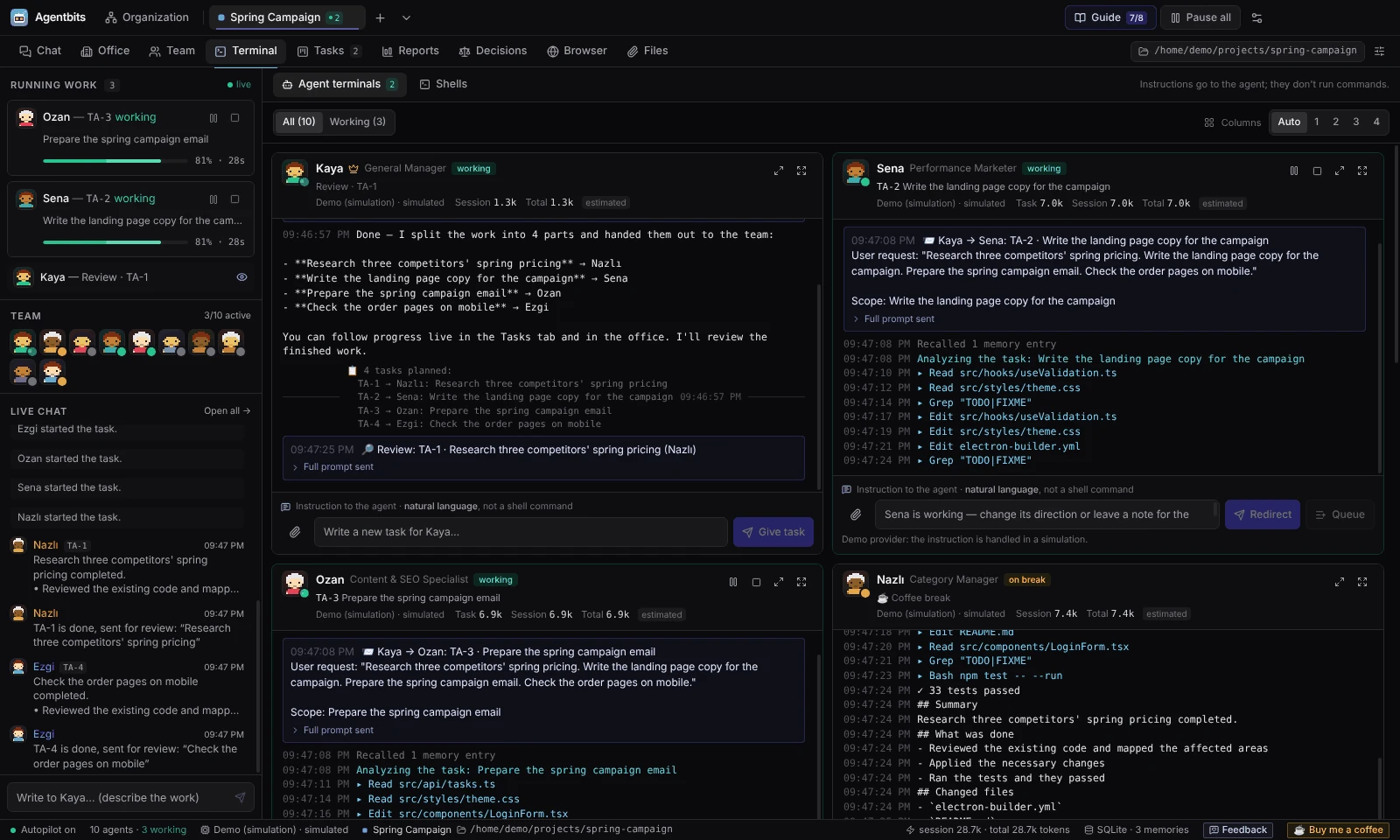
Agent terminals
Every member of the project gets a pane, the lead first. A pane is a record of the agent’s work, not a shell: what you type below a pane is an instruction to the agent, never a command.
Layout
- Columns: Auto or a fixed 1 to 4 columns.
- Filter: All or Working (only agents that are running something). Each shows a count.
- Maximize a pane to fill the section; Back to grid returns. Full screen fills the screen; press Esc to exit.
Pane header
The header shows the agent’s name and role, a crown for the Project lead, its status (working, idle, on break, error, offline, paused, awaiting approval), the current task (or No task), and the provider and model. It also has Pause / Resume and Stop.
Stop asks for confirmation (“Stop?”). Stopping ends the run and the task goes back to To do.
Note: For Claude Code and Codex CLI agents, Pause holds the reading of the agent’s output. It does not freeze the CLI process, which may keep working in the background.
Token strip
The header also shows token usage at three levels: Task (the current task), Session (since you opened the app this time) and Total (all time). Hover over it for the breakdown: input, output, cache read, cache write, cost and the number of records.
How complete the numbers are depends on the provider:
| Provider | What is reported |
|---|---|
| Claude Code CLI | Input, output and cache, plus cost in $ |
| Anthropic API, OpenAI API | Input, output and cache; no cost is calculated |
| Codex CLI | Only the total |
| Demo | Estimates (marked “estimated”) |
Chat replies and lead reviews count too. For totals per project and per day, see Reports.
The transcript
The transcript is saved, so it is still there after you restart the app. It shows:
- Prompts, with who sent them: for example a line like
📨 Lead → Agent: TA-7. Expand Full prompt sent to read the exact prompt and the System prompt. - The agent’s output and its tool steps. Results of Claude Code tool calls appear as short
↳lines. - The lead’s review prompt and decision, also mirrored into the worker’s terminal.
- Chat prompts and replies, and the task lists the lead planned.
- Your own instructions.
- Status marks: started (
▶), redirected (↪), paused (⏸), stopped (■) and finished.
Panes keep the latest 4000 lines in view; Older entries loads earlier history. If you have scrolled up, a “n new” badge tells you new output has arrived. Panes that are off screen stop drawing and catch up when you scroll back.
Transcripts are pruned together with other agent logs according to Settings → Data management → Log retention (30 days by default).
Instructions to an agent
The box under each pane takes a natural-language instruction, up to 8000 characters. The buttons depend on what the agent is doing:
| Agent state | Buttons |
|---|---|
| Working | Redirect and Queue |
| Awaiting approval | Queue |
| Idle | Give task |
- Redirect interrupts the current step. The same task continues, now with your instruction.
- Queue waits until the current step finishes and applies the instruction before the work goes to review. If the run is still waiting for approval, the instruction is added to its first prompt. The pane shows how many instructions are queued.
- Give task creates a task assigned to this agent from your text (the first line becomes the title) and starts it.
How a redirect continues depends on the provider, and the pane shows a label for it. Claude Code resumes the same conversation and sends only the new turn. The Anthropic and OpenAI APIs restart the step with the partial output and your instruction. Codex CLI replays the history as text. Demo simulates it.
Your instruction is not hidden: it appears in the transcript, in the task’s thread, and as a system note in the project’s #general (unless the agent is the lead). The lead also sees your recent direct instructions in its own prompt.
If the agent moved on to a different run while you were typing, the instruction is rejected with an error so it doesn’t land on the wrong work. Queued instructions are cancelled when you stop the run, when you reject its approval, or when the app restarts.
You can drop files anywhere on a pane: they go to that agent together with the instruction. See Files.
Note: Agent sessions are not interactive terminals. You cannot type into a running agent directly; you send instructions. For hands-on commands, use Shells.
Shells
Shells are real interactive terminal sessions on your computer (PowerShell or bash, depending on your system). Commands run with your own user permissions.
- Click + Open shell (or New shell). The shell opens in the active project’s folder. If the project has no folder, it opens elsewhere and the view tells you where.
- Shells are shared between projects. Switching projects does not close them.
- Full-screen programs, Ctrl+C and window resizing work, because each shell runs in a real terminal (PTY).
- Each session keeps up to 200,000 characters of output while the app is open, restored when you come back to the tab.
- Shells do not survive an app restart, and their scrollback is not saved. Agent transcripts are saved.
Pipe mode
If the terminal component cannot be loaded on your system, Agentbits falls back to Pipe mode and says so with a badge and a note on the first line. In pipe mode, full-screen programs, password prompts and arrow keys don’t work. Line editing happens in the app, and Ctrl+C only clears the line you are typing.
Found something wrong or missing? Open an issue on GitHub