DocumentationFeatures
Connections
Give agents controlled access to SSH servers and databases, with access levels, Production approval and an audit log.
Connections let agents work with your servers and databases: read a schema, run a query, check a server’s disk space. You define each connection once, decide per agent how far it may go, and every access is checked and written to an audit log. By default, no agent can use any connection.
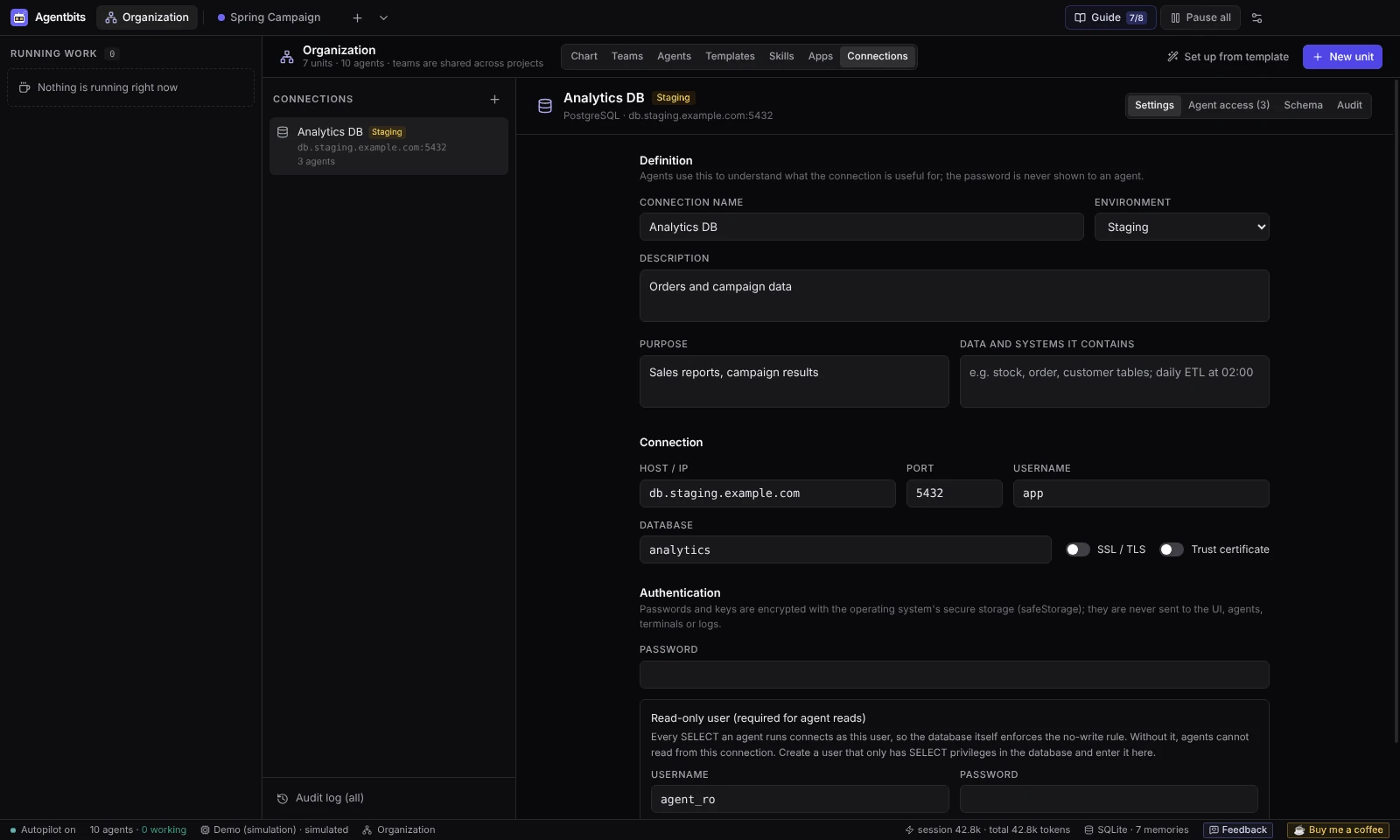
Supported connection types
Open Organization → Connections and click + at the top right (New connection). You can add:
- SSH servers
- PostgreSQL databases
- MySQL / MariaDB databases
- SQL Server databases
Connections belong to the whole organization, so every project can use them. The type can’t be changed after you create the connection.
Add a connection
- Open Organization → Connections and click +.
- Pick the type and fill in Definition: Connection name (must be unique), Environment, Description, Purpose and the notes field (Data and systems it contains for databases, Services it hosts for SSH). Agents read these to understand what the connection is for. They never see the password.
- Fill in Connection: Host / IP, Port (pre-filled with the default for the type), Username, Database, and the TLS options (SSL / TLS or Encrypted (encrypt), plus Trust certificate for a self-signed certificate).
- Fill in Authentication. For databases, enter the main Password and a Read-only user (see below). For SSH, choose a Method: Key file, Paste key, Password or SSH agent (the OpenSSH Authentication Agent on Windows,
SSH_AUTH_SOCKelsewhere). - For SSH, review Allowed commands (see Access levels).
- Click Test connection.
The test shows the database server version and checks that the read-only login works. For SSH, the first successful test pins the server’s host key (SHA256 fingerprint). Agents won’t connect to an SSH server whose key you haven’t pinned with a test, and a changed host key is always refused until you reset the pinned key.
Note: A remote Production database can’t be saved with SSL/encryption turned off. Only databases on this computer (
localhost) are exempt.
Environments
Each connection has an Environment: Development, Staging or Production. The environment is shown to agents and decides whether changes need your approval.
| Environment | What happens |
|---|---|
| Development | Operations run within the agent’s access level. |
| Staging | Operations run within the agent’s access level. |
| Production | Reads run within the agent’s access level. Every other operation waits for your approval first. |
Access levels
Access is set per agent and per connection. There are five levels:
| Level | Database | SSH |
|---|---|---|
| none | No access (the default). The agent doesn’t even see the connection. | No access. |
| read | SELECT, WITH, SHOW, DESCRIBE, EXPLAIN |
Commands on the Read list |
| write | Also INSERT, UPDATE, DELETE, MERGE |
Also the Write list |
| execute | Also CALL / EXEC |
Also the Execute list |
| admin | Anything: DDL, GRANT, SET, several statements at once, statements that can’t be recognised |
Any command (limited only by the server account) |
Each statement or command is classified before it runs. Statements with side effects (for example SELECT … INTO, file functions, locking reads) need a higher level than they appear to. For SSH, one pattern per line, * means any arguments. Every command joined with | must be on a list, and commands containing ;, &&, >, <, a backtick or $( need admin. Commands that can start other programs or write files (interpreters, sudo, curl, editors and similar) never count as reads.
To grant access, use either:
- the connection’s Agent access tab, or
- Settings → Permission Matrix → Connection permissions (a grid of agents × connections).
Changes apply from the agent’s next tool call. An agent’s instructions list only the connections it has access to, with their name, type, environment, level, description, purpose and notes.
The read-only user
Agents can read from a database only through the Read-only user you enter on the connection. Every SELECT an agent runs connects as that user, so the database itself refuses writes even if the classifier misses one. If the field is empty, agents can’t read from that connection at all.
Create a database user that only has SELECT privileges and enter it here. On PostgreSQL and MySQL, reads also run in a read-only transaction that is always rolled back. SQL Server has no read-only transaction, so the read-only user matters even more there. Write and admin statements use the main user.
Limits per call: 30 seconds per statement, the first 200 rows returned (a read over 100,000 rows is stopped; add a LIMIT or WHERE), 48 KB of output. SSH commands: 60 seconds, 64 KB.
Production approval
On a Production connection, every operation other than a read waits for you. An approval box appears at the bottom left with a countdown, the statement or command and the level it needs, plus a toast. Click Approve and run or reject it.
- No answer within 10 minutes means rejected.
- Pending approvals are rejected when you stop or redirect the run, reset the app, or close it.
- If the agent’s access is lowered, or the connection or agent is changed or deleted while the request waits, the request is rejected. After you approve, access is checked again before anything runs.
Schema and audit log
The Schema tab shows tables, views and columns. Click Read schema to load it and search it. Agents read the schema the same way through their tools.
The Audit tab, and Audit log (all) on the Connections page, record every access: which agent, when, in which task, what it did and the result. Denied attempts are recorded too, as are your own actions (creating, editing and deleting connections, tests, schema reads, permission changes with old and new level, approvals). Filter by All, Denied, Error, Approval or Succeeded, and load Older entries as needed.
Secrets
Passwords, pasted keys, key passphrases and the read-only password are encrypted with your operating system’s secure storage. They are never sent to the interface, agents, terminals or logs, and driver errors mask them. A stored secret shows as •••••••• (stored — type to replace). If your system has no working keychain, Agentbits refuses to save secrets.
Which providers can use connections
Claude Code CLI, the Anthropic API, the OpenAI API and Demo can use connections. Demo makes real but harmless calls (list, schema, SELECT … LIMIT 5, a 0-row UPDATE, uptime / df) so you can see permissions, approvals and the audit log in action. Codex CLI agents can’t use connections yet. See Providers.
Good practice
- Try new agents and tasks on Development or Staging connections first.
- The real safeguard is on the server: a separate read-only database account and a restricted SSH user.
- Don’t give Terminal and Network permissions to an agent that only needs connections. Such an agent could reach servers directly with credentials stored on your computer (
~/.ssh,.pgpass, environment variables), outside these checks. See Permissions and Security.
Found something wrong or missing? Open an issue on GitHub