DocumentationConcepts
Tasks and orchestration
How tasks are created, picked up, approved, reviewed, redirected, paused and stopped.
A task is a card on the project’s Kanban board with a key such as TA-12. Agents work on tasks one at a time, the lead reviews the result, and you can step in at any point: approve a run, redirect an agent, pause or stop it. This page explains each step and the settings that control it.
The lifecycle
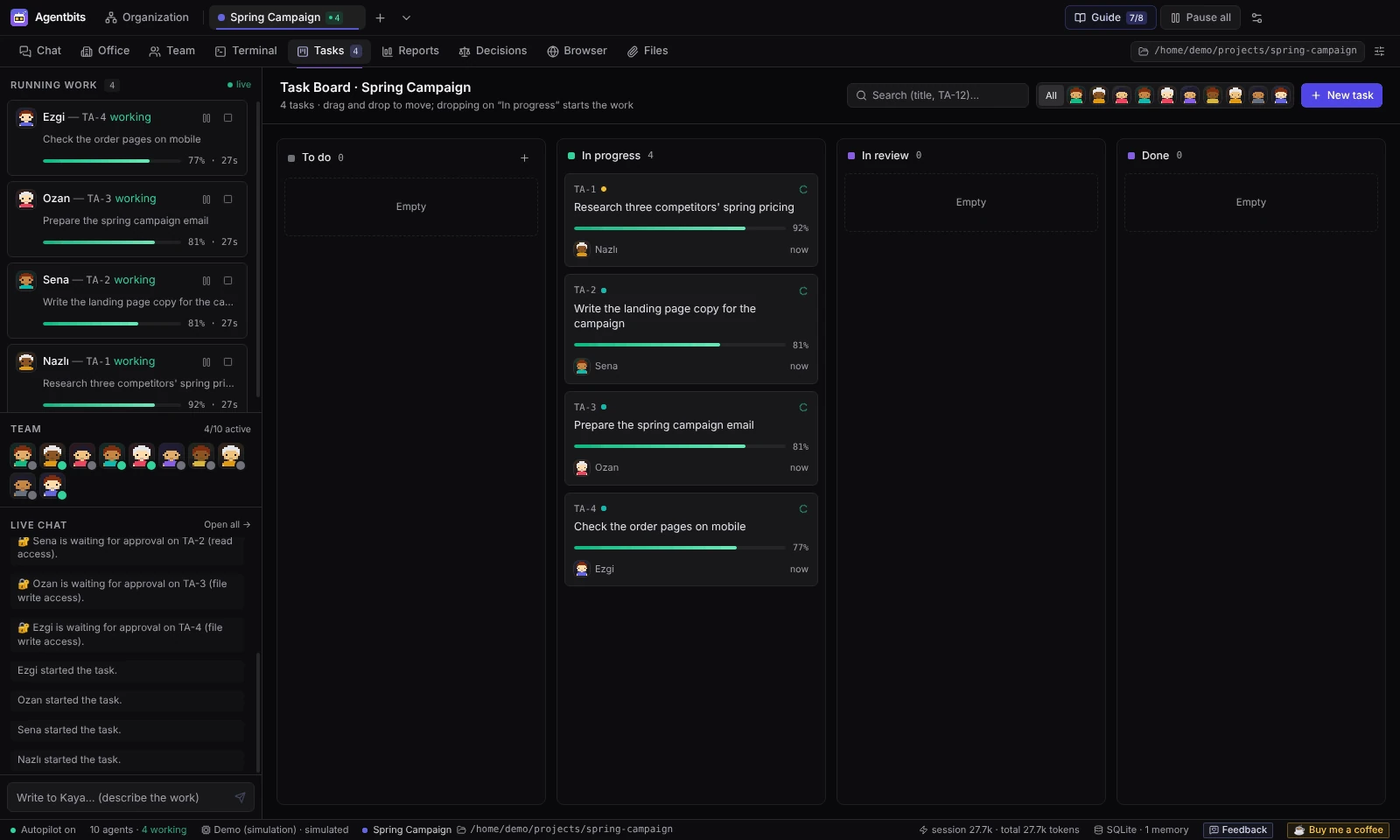
Every task moves through four columns:
- To do: waiting for an agent.
- In progress: an agent is working on it. The card shows a progress bar.
- In review: the agent has finished and the result waits for review.
- Done: the result was approved.
When an agent finishes, it writes a report to the task thread, posts a short note in #general, and takes a short coffee break in the Office. A summary of the work goes into the project memory, and any decisions the agent proposes appear in Decisions (see Memory).
If a run fails, the task goes back to To do. The agent shows an error for about 45 seconds and then becomes idle again.
Creating tasks
From the lead. Describe the work in #general in the project’s Chat. The lead splits it into tasks and assigns each one to a project member based on role, expertise and job description; a system message says how many tasks were created. Files you attach to your message are passed on to the new tasks. If the lead names someone who is not a project member, the task stays unassigned.
By hand. Open Tasks and click New task. Fill in Title, Description, Priority and Assignee (leave it on Automatic to let any free member take it), and attach files if needed. Ctrl+Enter creates the task. Only project members, not the lead, can be assignees.
From an agent. Assign task in an agent’s profile, or Give task in its terminal (see Direct instructions).
Task numbers are shared across all projects, so keys stay unique.
The board and the task drawer
On the board you can search by title or key, filter by agent and drag cards between columns:
- Dropping a card on In progress starts the work.
- Dragging a card out of In progress stops it.
Click a card to open the task drawer. There you edit the task, change status, priority and assignee, and use Start now, stop or delete. The drawer has three tabs: Thread (the agent’s reports and your notes), Logs and Runs (each attempt with its token count). A note you leave in the thread gets no reply; it is included in the agent’s next run.
Autopilot
With Settings → General → Autopilot on, idle agents pick up the next task by themselves (Agentbits checks every 1.5 seconds):
- An agent takes tasks assigned to it from any active project.
- It takes unassigned tasks only from projects where it is a member and not the lead.
- Assigned tasks come first, then higher priority, then board order.
- The organization lead never takes tasks. Archived projects are skipped.
With autopilot off, nothing starts until you start it: Start now in the drawer, or drag the card to In progress. When you start a task by hand, Agentbits uses the assignee, or else the first idle project member.
Held tasks
Some events put a task on hold so autopilot does not try it again on its own: you rejected the run, you stopped it, it failed twice in a row, it was interrupted when the app closed, or the lead sent it back after four runs. A held task waits in To do until you start it yourself or move it to To do from another column. Holds survive a restart.
When you reopen the app, tasks that were in progress go back to To do and are held, with a note in the task thread. They don’t restart by themselves, because a half-finished run may already have changed something.
Approval before each task
Turn on Require approval for an agent (in its Permissions, or in Settings → Permission Matrix) and every run of that agent waits for you before it starts. This works with every provider; no model request is sent before you approve.
While it waits, the card shows “approval”, the Office shows a question mark over the agent, #general gets a message, and an approval card appears in Running work in the left panel with the permissions the run will use. Approve it to start the run. If you reject it, the run is cancelled and the task goes back to To do and is held. Stopping a run that is waiting for approval counts as a rejection.
Agents created from templates start with Require approval on.
Lead review
With Settings → General → Lead review on, the project lead reviews finished tasks one at a time:
- If the lead approves, the task moves to Done with the lead’s note.
- If the lead sends it back, the task returns to To do with a review note. The card shows “Has a revision note”, the note goes into the agent’s next run as feedback, and it is saved to memory.
Only a clear approval counts. If the lead’s answer is unclear, the task stays in In review and you decide by moving it yourself. If you move a task while it is being reviewed, the review result is ignored. After four runs that were sent back, the task is held so a review loop can’t run up costs.
With lead review off, finished tasks stay in In review until you move them.
Direct instructions
In Terminal → Agent terminals, each agent pane has an instruction box at the bottom. You write in natural language; it is not a shell command. Instructions can be up to 8,000 characters and you can drop files on the pane to send them along.
| Button | When | What happens |
|---|---|---|
| Redirect | Agent is working | The current step is interrupted and the same task continues with your instruction. |
| Queue | Agent is working or waiting for approval | Applied when the current step finishes, before the task goes to review. If the run is still waiting for approval, the instruction is added to its first prompt. |
| Give task | Agent is idle | Creates a task assigned to this agent (title from your first line) and starts it. |
How Redirect continues depends on the provider. Agentbits does not type into a live model; the pane shows which method applies:
| Provider | What Redirect does |
|---|---|
| Claude Code CLI | Ends the running process and continues the same conversation with --resume. The interrupted turn stays half-finished in that session. |
| Anthropic API, OpenAI API | Sends the request again with the original prompt, the partial output so far and your instruction. |
| Codex CLI | No resume: the history so far is replayed as text with your instruction. |
| Demo | Simulated. |
Every instruction is recorded: in the agent’s transcript, as your message in the task thread and, unless the agent is the project lead, as a note in #general. The lead also sees your most recent interventions in its own instructions. Pending instructions are cancelled if you stop the run, reject its approval or restart the app. If the agent moved on to another run before your instruction arrived, it is refused and you see why.
See Terminals for the rest of the agent pane.
Pause and stop
- Pause / Resume on a run, in Running work or in the agent pane, holds it where it is.
- Stop (with a confirmation) cancels the run; the task goes back to To do and is held.
- Pause all in the top bar pauses every agent and stops autopilot. It stays paused after a restart until you click Resume.
Note: With Claude Code CLI and Codex CLI, pausing does not freeze the process. Agentbits only stops reading its output, so the process may keep working in the background. Use Stop if it must stop now.
If a provider reports a sign-in or API key error, Agentbits pauses the whole team and posts a message in the affected project’s chat, with what to do (for example claude auth login or codex login). Fix it, then click Resume in the top bar.
There is no time, token or spending cap per task yet, and no scheduled or recurring tasks. See Limitations.
Found something wrong or missing? Open an issue on GitHub