DocumentationFeatures
Chat
How the project chat works: describing work to the lead in #general, direct messages to agents, task threads and attaching files.
The Chat section is where you talk to your project’s AI team. You describe work to the project lead in #general, the lead splits it into tasks for the team, and you can also message single agents or leave notes on a task. Every project has its own chat.
Open it with Chat in the project’s section bar or Ctrl+1.
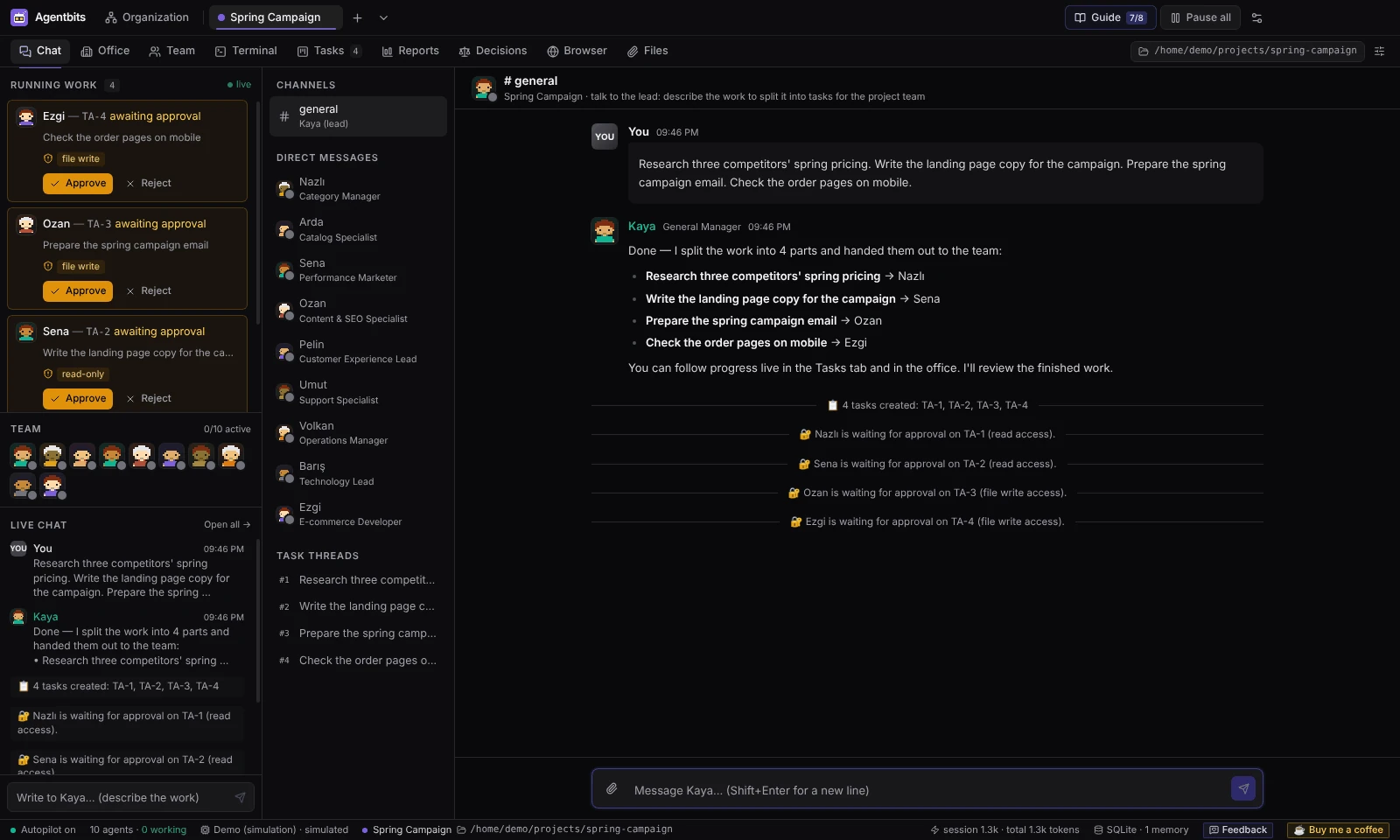
Channels
The list on the left has three groups:
| Group | What it is | Who answers |
|---|---|---|
Channels → #general |
The project’s main channel. Shown with the lead’s name, for example “Atlas (lead)”. | The project lead |
| Direct messages | One conversation per project member. | That agent |
| Task threads | One thread per task in the project. | Nobody: notes are passed to the agent on its next run |
Messages render as Markdown. While an agent is writing a reply you see “name is typing”. Press Enter to send and Shift+Enter for a new line.
Describe work to the lead
In #general you write what you want the way you would brief a person: the goal, where the work happens, and any constraints. For example:
Research three competitors’ pricing. Write the landing page copy. Draft the campaign email.
What happens next:
- The lead reads your message together with the recent conversation, the project’s open tasks and the relevant memory.
- The lead answers and, when the request is work, plans tasks for the team. It assigns each task to the project member whose role, skills and job description fit best. Only project members can be assigned; the lead itself does not take tasks there.
- The tasks appear on the Tasks board and a system message reports how many were created.
- With autopilot on, idle agents pick the tasks up. You follow them in the Office, the Terminals and the board.
The lead can also propose a decision. Proposed decisions go to the Decisions section for you to accept or reject (see Memory).
Longer messages you write (20 characters or more) are saved to the project’s memory as context, so later runs can recall them.
Suggestion buttons offer example requests, such as asking the lead to review an attached file and split the to-dos into tasks.
Note: In chat the lead plans and answers; it does not edit files or run commands. With a Claude Code, Anthropic API or OpenAI API lead, it can read the files you share with it. The actual work happens in tasks, with each agent’s own permissions.
When there is no lead
If the project has no agents or no lead yet, the chat shows “No lead to talk to yet” with links to Templates and the guide. Add agents, assign a team to the project and choose a lead (see Organization and Projects).
Direct messages
Pick an agent under Direct messages to talk to it alone. The agent answers in its own working style, with a short reply. A direct message is a conversation, not a task; to give an agent work directly, use Give task in its terminal or create a task on the board.
You can also start a direct message from the agent’s panel in the office (Message) or from Organization → Agents (Message).
Task threads
Each task has a thread. Open it to read the task’s messages and to leave a note (“Add a note…”). Agents do not reply in task threads. If the task is still to do or in progress, your note is added to the task’s context and the agent sees it on its next run.
Attaching files
You can attach files to any message: use the paperclip button, drag and drop files onto the chat, or paste. Uploads start right away, while you type; you can send once they have finished.
Who can read the files depends on where you send them:
- In
#general, a picker labelled Who can read the files: lets you choose Lead only (default), The whole project team or Team: name. - In a direct message, only that agent can read them.
- In a task thread, the files are added to the task, so the agent doing it can read them.
When the lead creates tasks from your message, it attaches the files you sent to the new tasks, which lets the agents doing those tasks read them. Formats, limits and access rules are on the Files page.
Live chat in the left panel
The Live chat box in the left panel shows the project’s latest messages from every channel. Type in its box (“Write to lead… (describe the work)”) to send a message to the lead without leaving the section you are in. Open all → jumps to the Chat section.
Found something wrong or missing? Open an issue on GitHub