DocumentationFeatures
Office
The pixel office shows the active project's team at their desks, what each agent is doing, and lets you open any agent's details.
The Office section draws the active project’s team in a small pixel-art office. Each agent has a desk and a laptop, walks to the lounge for a coffee break, and shows a bubble when it needs you. It is the quickest way to see who is working, who is idle and who is waiting for approval.
Open it with Office in the project’s section bar or Ctrl+2.
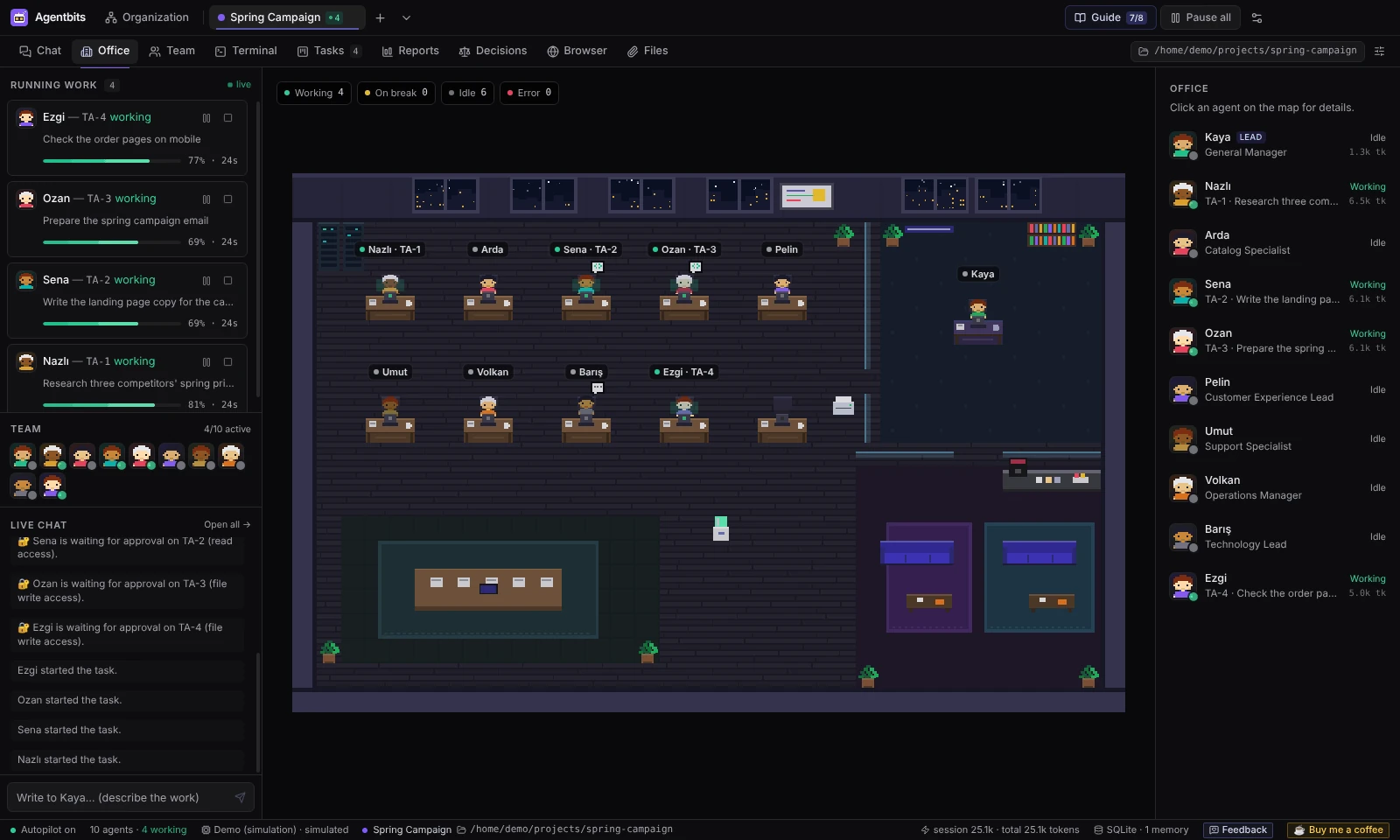
Who sits in the office
The office shows only the team of the project you have open. The members are the agents of the teams assigned to the project (see Projects).
- The project lead sits at the lead desk, the glass-walled office on the right.
- The other members sit at the worker desks in order. There are 10 worker desks; in a project with more than 10 workers, some agents share a desk.
- When you switch projects, the desk assignment changes and the agents walk to their new desks.
- Agents are shared between projects and run one task at a time. An agent that is busy in another project is drawn faded, with the label “in another project”.
- Agents you have taken offline are not drawn.
If no team is assigned to the project yet, only the lead appears with a note: “No team assigned to this project yet”. If you have no agents at all, the office says it is empty and links to Templates and the Guide.
Reading the office
Each agent shows its state through where it is and what it does:
| What you see | Meaning |
|---|---|
| Typing at the desk, laptop lit | Working on a task |
| Walking to the lounge, steaming coffee | On a short break after finishing work |
? bubble (yellow) |
Waiting for your approval before it starts |
! bubble (red), blinking |
The last run ended with an error |
= bubble |
The run is paused |
.. bubble |
Idle |
Above each agent is a name label with a status dot. While an agent works, the label also shows the task key, for example · TA-7.
Tip: An agent with Require approval turned on waits with a
?bubble until you approve the run. Agents created from templates start with this setting on, so expect approval cards on their first runs. See Tasks.
The agent panel
Click an agent on the map to open its panel on the right. Until you pick one, the panel shows “Click an agent on the map for details.”
The panel shows:
- Current work: the task the agent is running, with Pause, Resume and Stop.
- How many of its tasks are Queued and Done.
- Tokens: the agent’s token usage, including the All time total.
- Activity: the agent’s recent log entries.
- Message: opens a direct message with the agent in Chat.
- Take offline / Bring online: takes the agent out of rotation or puts it back.
- Edit profile: opens the agent in Organization → Agents.
If the agent is working in another project, the panel says “Working in another project” and offers Go to project.
The left panel
The left panel stays next to every project section, so you can follow the work without leaving the office.
Running work
Running work lists the runs in progress across all projects: agent, task, state, a progress bar and elapsed time. Each row has a project chip; click it to switch to that project. From a row you can pause, resume or stop a run. Side activities such as a lead review or a chat reply also appear here.
When an agent with approval turned on wants to start, an approval card appears here with the permissions it asks for (for example file write, terminal, network). Approve it to start the run or reject it.
Note: For Claude Code and Codex CLI agents, pausing holds the reading of the agent’s output. It does not freeze the CLI process, which may keep working in the background.
Team
The Team strip shows the active project’s members as avatars with a status dot and a count such as “3/5 active”. Click an avatar to select that agent in the office.
Live chat
Live chat shows the project’s recent messages and lets you write to the lead directly. See Chat.
Related pages
- Terminals for the full transcript of what each agent was asked and did.
- Tasks for the Kanban board, approvals and lead review.
- Organization to add agents and teams.
Found something wrong or missing? Open an issue on GitHub