DocumentationConcepts
Organization and agents
How units, teams, agents, leads, job descriptions and templates fit together on the Organization page.
The organization is everything your AI team is made of: the units (companies, departments, teams), the agents inside them and who leads what. You build it once and reuse it across projects. Open it with Organization in the top bar or Ctrl+O.
A new installation starts empty: no agents, no teams, no tasks. You either set up a team from a template or create agents yourself.
The Organization page
The page has these tabs:
| Tab | What you do there |
|---|---|
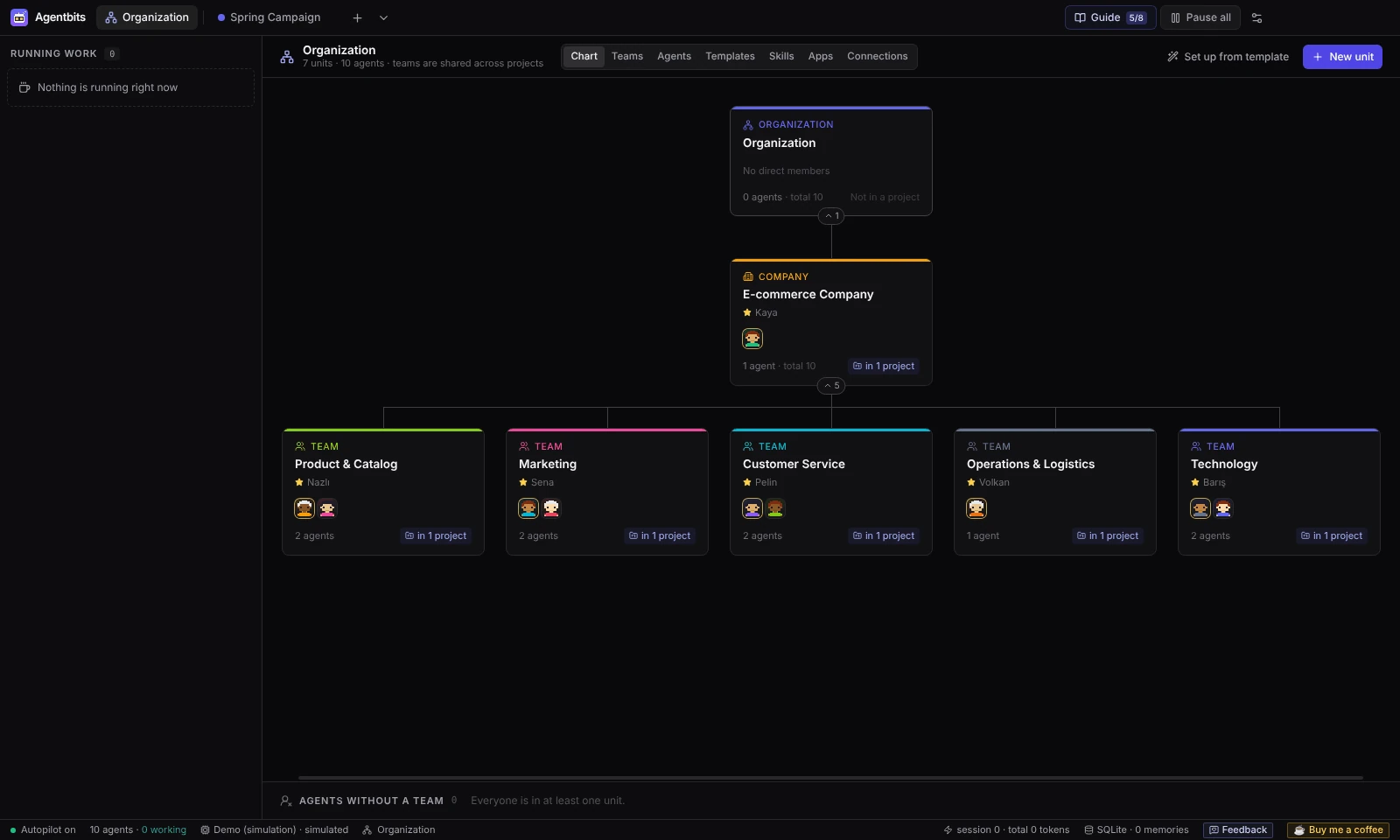
| Chart | See the whole organization as a top-down tree. Nodes collapse, each unit shows how many projects it is used in, and Agents without a team lists agents that are in no unit. |
| Teams | Edit units: name, type, description, color, parent unit, lead and members. |
| Agents | Create and edit agents: role, job description, expertise, model and permissions. |
| Templates | Set up a ready-made team or company in one click. |
| Skills, Apps, Connections | Instruction packages, MCP apps, and SSH servers and databases. See Skills, Apps and Connections. |
Units
A unit is a node in the organization tree. There are four types: Organization, Company, Department and Team. You can nest them as deep as you like, for example company → department → team.
- The root unit is the organization itself. It can’t be deleted or moved.
- Each unit has an optional Unit lead, a color and a description.
- An agent can be a member of more than one unit. Its title inside each unit (for example “Senior analyst”) is set per membership.
- When you make an agent a unit lead, it is added as a member automatically.
To create a unit, use New unit at the top of the page, or hover over a unit in Teams and add a sub-unit. In the unit editor, Add member adds existing agents and Create new agent creates one directly inside the unit.
A unit works like a reusable team. Under Used in projects you see every project it is assigned to, and Add to project… assigns it to another one. When a unit is assigned to a project, all members of that unit and its sub-units work on the project. See Projects.
Deleting a unit also deletes its sub-units. Agents are not deleted: only their memberships in those units are removed, and the units are removed from projects.
Agents
An agent is an AI worker on your team. Create one in Organization → Agents → New agent:
- Name (required, unique, not case-sensitive) and Role / title.
- Job description: responsibilities, scope and deliverables. The lead reads this when it assigns work.
- Expertise: tags such as “React” or “market research”, added with Enter or a comma. Tasks are matched against these tags.
- Permission template: Read-only, Developer or Full access. You can change single permissions afterwards. See Permissions.
- A random pixel look, which you can shuffle.
The agent editor then has these parts:
- Status: the agent’s current work and its queued and finished tasks.
- Identity: name, title, look, Active (when off, the agent takes no tasks and appears offline) and Lead.
- Duties and job description: job description, expertise and Working style / system instructions (tone, priorities, rules).
- Teams: the units the agent belongs to and the projects it works on through them.
- Model: the provider and model this agent uses. Without a provider it runs in demo mode. See Providers.
- Permissions: file, terminal, network and approval settings, plus Extra allowed folders. Changes save instantly and stay in sync with the Permission Matrix in Settings.
- Delete agent: assigned tasks become unassigned, and the agent’s run history and personal memory are deleted.
Message opens a direct chat with the agent and Assign task creates a task for it.
The job description and expertise go into the agent’s own instructions. The lead also sees each team member’s role, expertise and a short excerpt of its job description, and uses them to pick who gets which task. The clearer they are, the better the assignments.
Agents are shared between projects, but an agent works on only one task at a time. The office has 10 desks; if a project has more agents, they share desks.
Leads
There are two kinds of lead:
- Organization lead: the agent with Lead switched on in its Identity section. There is only one. It can’t be deleted; to hand over leadership, make another agent the lead. It never picks up tasks through autopilot.
- Project lead: the agent that answers you in a project’s chat, splits work into tasks and reviews finished work. By default it is the lead of the project’s first assigned unit. You can choose a different one in the project settings. See Projects.
Templates
Organization → Templates lists ready-made teams. Set up from template asks for a name and a parent unit, then creates the units and new agents with job descriptions, expertise, permissions and unit leads already filled in.
| Template | Agents |
|---|---|
| Core Team | 5 |
| Software Team | 5 |
| Research & Analysis | 4 |
| Product Development | 4 |
| Marketing & Content | 4 |
| E-commerce Company | 10 (a general manager plus five sub-teams) |
If a template agent’s name is already taken, it gets a unique name. Everything a template creates can be edited later.
Note: Agents created from a template start with Require approval on (except the Core Team lead, who never takes tasks). Expect approval cards in the left panel on their first runs. See Tasks.
Found something wrong or missing? Open an issue on GitHub